Clip it after it happens.
Backtrack keeps the last minute of your game in the background. Press Alt+S and that moment is a clip. Trim it, press E, and a Discord-sized copy (under 10 MB, no Nitro needed) is on your clipboard.
v0.3.5 · 59 MB installerWindows 11 (64-bit)
Not code-signed yet: if Windows warns you, choose More info → Run anyway.
Press Alt+S on your keyboard, or click the keys.Tap the keys. In a game, that's all it takes to keep the last 60 seconds.
How it works
Save, trim, export, paste.
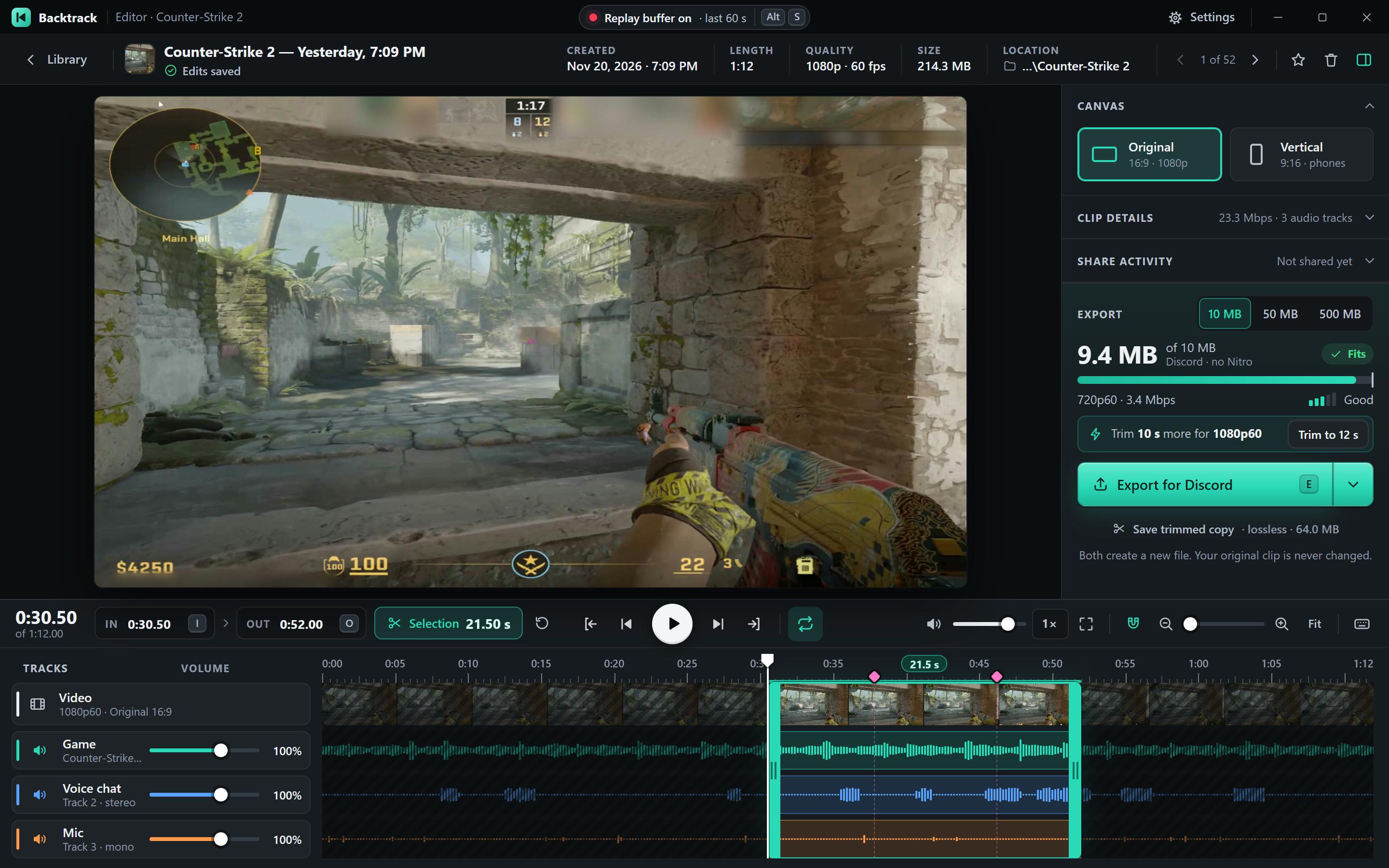
A working copy of the editor, with sample waveforms. Go on, use it.
- 1Save itAltS
- 2Trim itdrag the edges
- 3Export itE
- 4Paste itCtrlV
 BacktrackLibraryReplay buffer on· last 60 sAltS
Recording· always keeping the last 60 s
AltF7 marks a moment. Pink markers become snap points when you trim.
Switching
Coming from GG Moments?
Bring your clips with you, and keep the key you already press.
It reads your Moments folder
 Backtrack
- Game names
- Trims
- Separate audio tracks
Same key to save
The last minute, saved with the shortcut you already use.
The app
Everything else lives in the app.
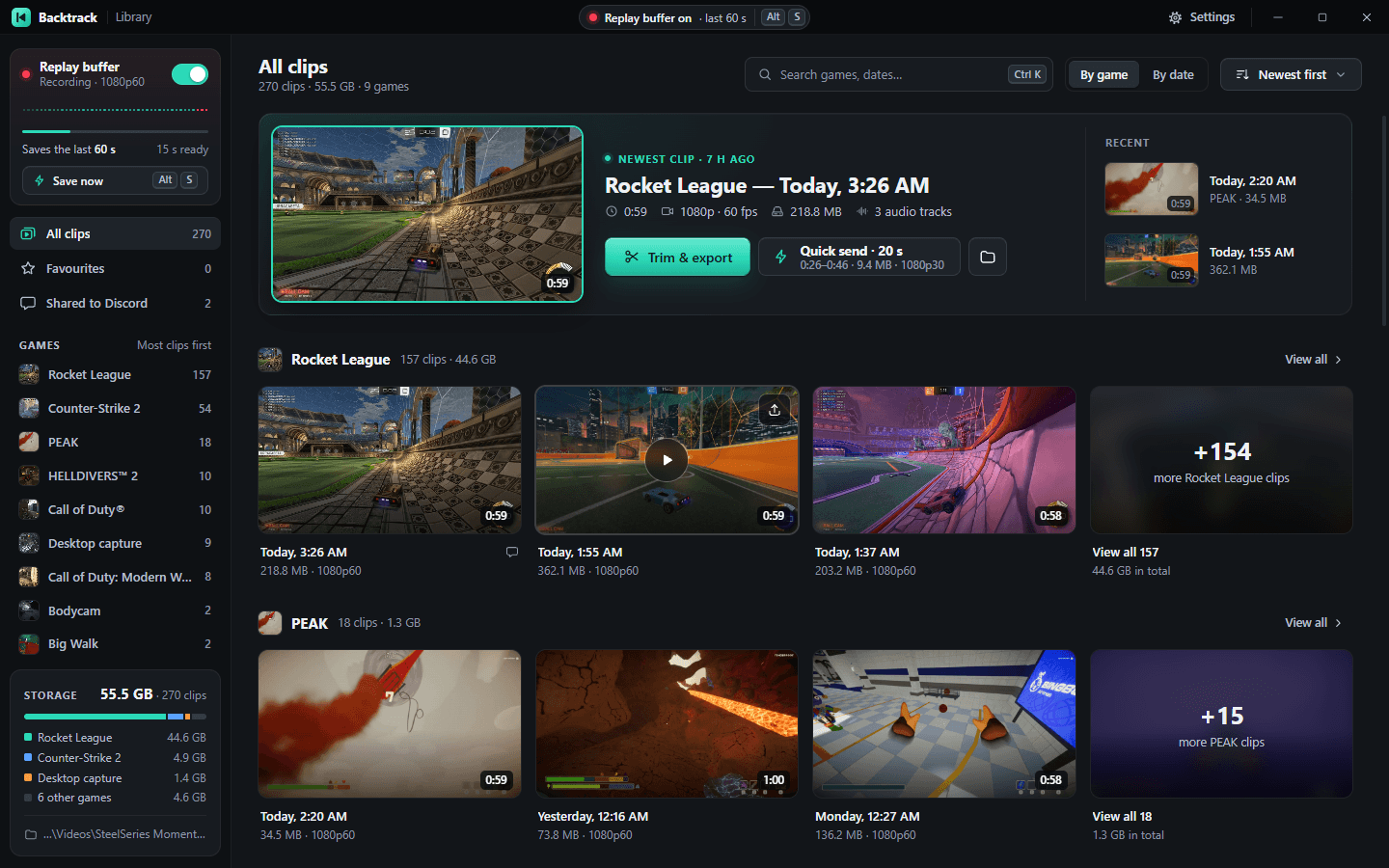
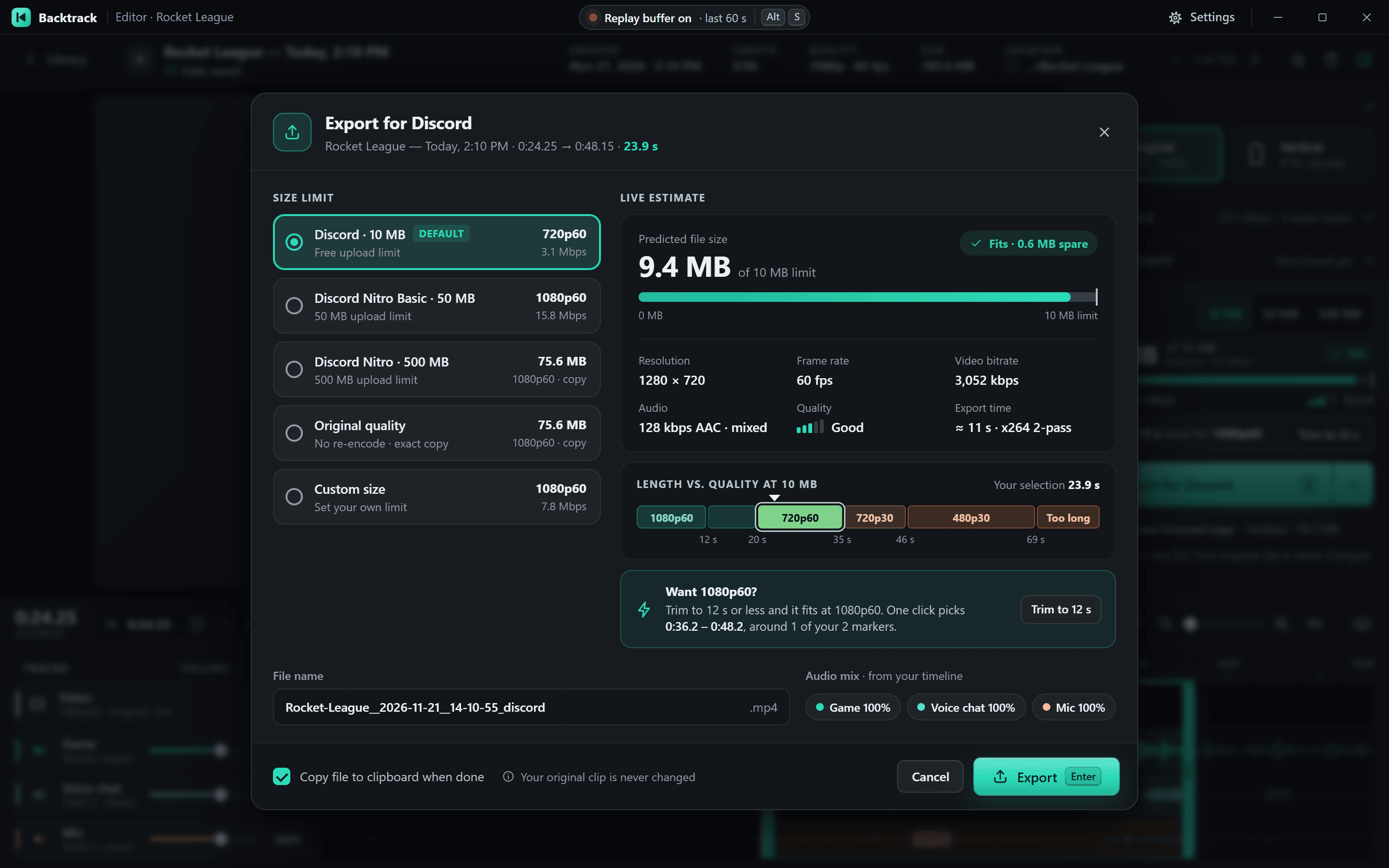
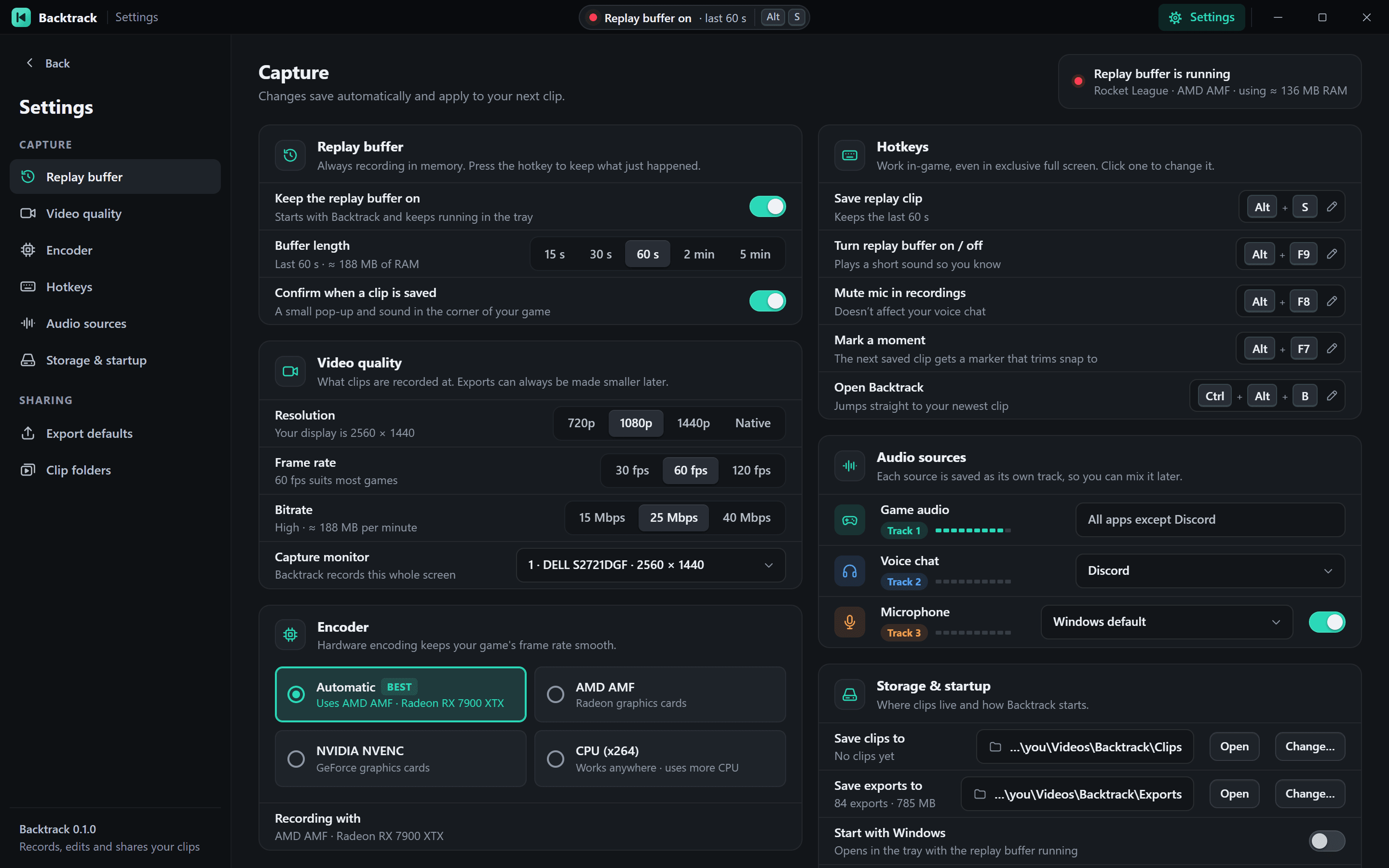
Screens from Backtrack itself: the library, the full export dialog and the settings.
Your library
Clips are grouped by the game you were playing. The newest one waits at the top, with Trim & export and Quick send one click away.
Library The full export dialog
Discord's 10 MB, Nitro's 50 or 500 MB, the original quality, or a size of your own. Each one shows the resolution, frame rate and file size before anything is encoded, and the file goes to your clipboard when it's done.
Export for Discord Settings that matter
Record with AMD or NVIDIA hardware encoding, or on the CPU. Choose the resolution, frame rate, bitrate and which screen to capture. Changes save as you make them.
Settings
Features
Small app. Everything you need to keep and share a clip.
Out of your way while you play
Lives in the trayPrivacy
No account. No cloud. No telemetry.
Everything runs on your PC.
Runs on your PC
Recording, trimming and exporting all happen on your machine.Your folder
Clips are plain video files in a folder you choose.Open source
MIT licensed, so anyone can read exactly what it does.
Install
Download, run, play.
- 1
Download the installer
backtrack-…-setup.exe, from the latest release on GitHub.Download for Windowsv0.3.5 · 59 MB installer - 2
Run it
That's it. FFmpeg comes included, and it installs just for you, with no admin rights needed.
- 3
If Windows warns you
Backtrack isn't code-signed yetSo SmartScreen may warn you the first time. Choose More info, then Run anyway.
Hotkeys
They work in‑game, even in exclusive full screen.
You can change all of these in Settings.
| Keys | What it does |
|---|---|
| AltS | Save the replay buffer as a clipKeeps the last 60 s |
| AltF9 | Turn the replay buffer on or offPlays a short sound so you know |
| AltF8 | Mute your mic in recordingsDoesn't affect your voice chat |
| AltF7 | Mark a momentThe next saved clip gets a marker that trims snap to |
| CtrlAltB | Open BacktrackJumps straight to your newest clip |

Your next clip is one key away.
Free and open source for Windows 11 (64-bit)v0.3.5 · 59 MB installer